
Have you looked at your WordPress dashboard lately and assumed the automatic updater already took care of the latest security release? That is a reasonable hope. It is not the same as knowing the update finished.
WordPress released version 7.1.5 on November 18, 2026. It is a security release that fixes multiple issues, some of them reachable without a login. Matching patches went out the same day for older supported branches (7.0.9, 6.9.12, and so on, back through 4.7). Most sites with automatic background updates enabled will pick it up on their own, but not every site does. A quick look at the version number is the only reliable way to confirm.
Where to find the version number
- Go to your usual WordPress login page (most sites use yourdomain.com/wp-admin).
- Sign in with an Administrator account.
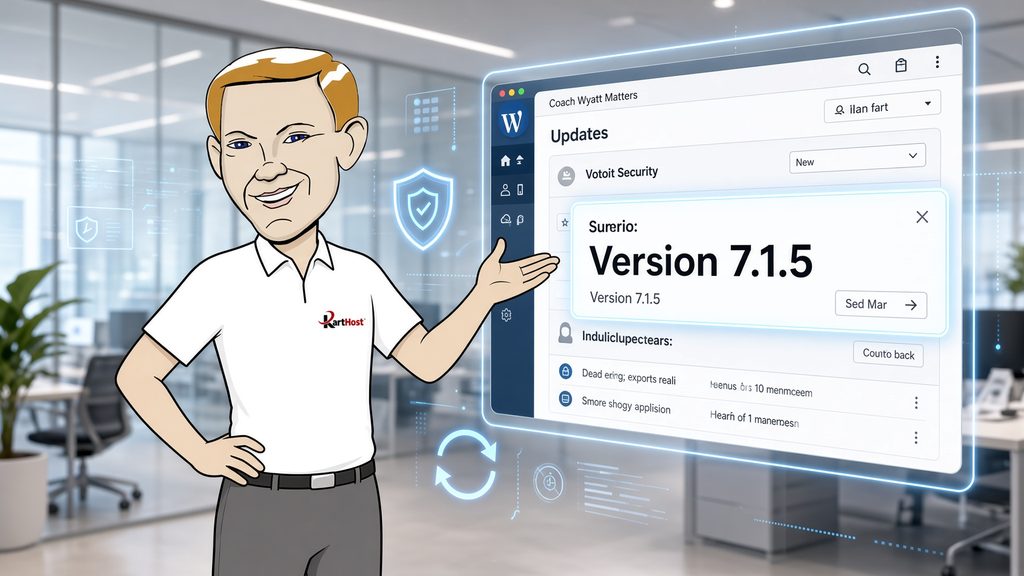
- Look at the bottom of the left-hand menu. WordPress often shows the current version there (for example, “Version 7.1.5”).
- Also open Dashboard, then Updates. The Updates screen repeats the core version at the top and tells you whether a newer WordPress version is waiting.
- Write the number down or take a screenshot so you have a clear record.
What a current site should show
Compare the number you see with these patched versions:
- On the 7.1 branch: 7.1.5 or newer
- On the 7.0 branch: 7.0.9 or newer
- On the 6.9 branch: 6.9.12 or newer
- On older supported branches: the matching November 18 patch for that branch
If the number is lower than the patched version for your branch, the site has not yet received the November 18 fixes. Only the most recent version of WordPress is actively supported, so staying on an older branch long-term is not ideal, but the matching security patch is still the immediate step.
If the update has not finished
Do not click Update yet if a newer version is waiting. First make a fresh backup. A reliable backup is the difference between a short interruption and a longer recovery. The habit of confirming a recent backup before any change is covered in The Pre-Holiday Website Backup Habit Every Small Business Should Start Now.
After the backup exists:
- Return to Dashboard, then Updates.
- Click the button to update WordPress core only. Leave plugin and theme updates for a second pass.
- When the process finishes, reload the dashboard and confirm the version number has changed to 7.1.5 (or the matching older-branch patch).
- Visit the live site. Check the home page, a contact form or donation page, the shop or checkout if you have one, and a recent blog post. Look at a phone-sized screen if you can.
After the update
A brief login prompt, a compatibility notice on one plugin, or a page builder that needs a moment to rebuild styles are normal side effects. Unusual users, plugins you did not install, or sudden form spam are not. A calm checklist for telling the difference is in What Unusual WordPress Behavior Can Mean After a Big Security Patch.
The same version-check steps work for earlier security releases as well. Earlier walkthroughs appear in How to Confirm Your WordPress Site Got the September 22 Security Update and How to Check If Your WordPress Site Is Updated and Protected Right Now. Broader context on why these patches keep arriving is in WordPress Security Updates You Cannot Ignore This Year.
Server-level updates (such as the recent PHP security release) are handled separately from WordPress core. Those are covered in PHP Security Update: Your Website Is Protected.
A five-minute version check this week confirms the November 18 fixes are in place before the holiday stretch begins.
