
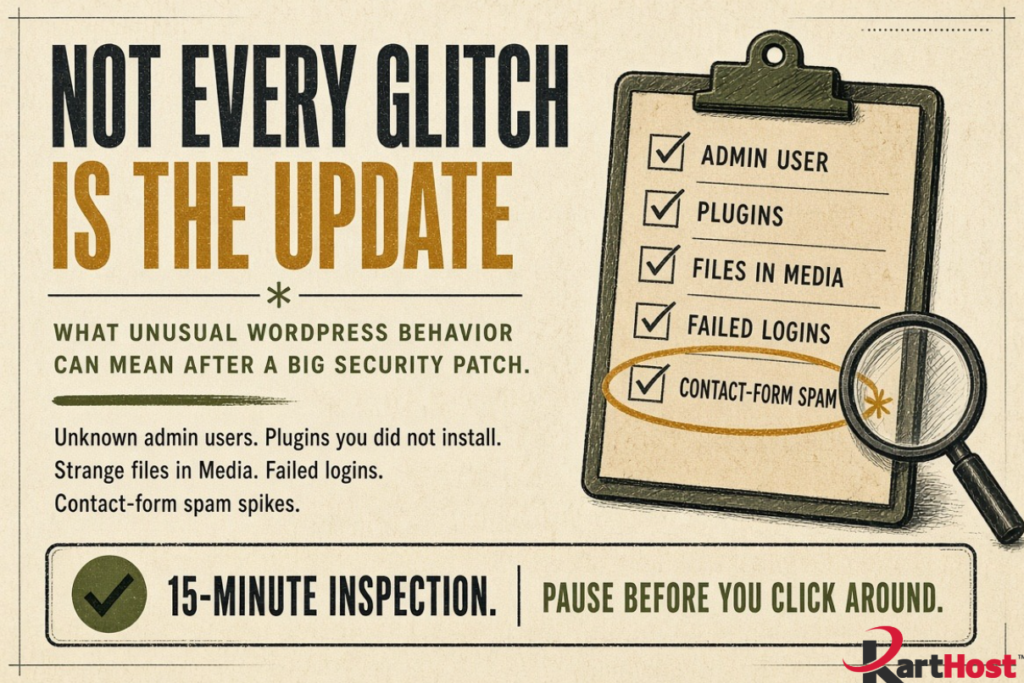
You applied the September 22 WordPress update, or your host applied it for you. Then something looked off. A login felt slower. A plugin notice appeared. A form started collecting junk. It is easy to shrug and say, “That is probably just the update.”
Sometimes it is. A core security patch can change how pages load, how a theme finds templates, or how a plugin talks to WordPress. Those side effects are usually small and they show up right away.
Sometimes it is not the update at all. Attackers started probing unpatched sites within hours of the 7.1.2 release. An odd user, a plugin you did not install, or a sudden pile of contact-form spam can be leftover activity from before the patch, or a sign that someone still has a way in.
You do not need a forensic toolkit. You need one calm pass through the dashboard. If something on this list looks wrong, stop clicking and get help instead of trying to “fix” it by deleting things at random.
This pairs with the version check in How to Confirm Your WordPress Site Got the September 22 Security Update and the broader habit in How to Check If Your WordPress Site Is Updated and Protected Right Now.
First, separate “update leftover” from “worth a closer look”
Normal after a core security update:
- The dashboard asks you to refresh or log in again
- One theme or plugin shows a compatibility notice
- A page builder needs a moment to rebuild CSS
- Caching makes an old version of a page appear until you view it in a private window
Not normal, and worth checking once:
- A user account you do not recognize
- A plugin or theme you did not add
- New files in the Media Library that nobody uploaded
- A burst of failed logins
- Contact-form or donation spam that started around the same week
Work through the list below in order. Write down what you see. Do not start uninstalling, resetting passwords on every account, or editing files unless you already know that is the right next step.
1. Unknown users
Go to Users, then All Users.
Look at every row, not just the names you expect.
Pay attention to:
- Anyone with the Administrator role that you did not create
- Accounts named admin, test, backup, shop, or a string of random letters
- A new Editor or Author that appeared this month
- An old employee, contractor, or plugin vendor who should no longer have access
One leftover vendor account is common. A brand-new Administrator you never added is not “just the update.” WordPress core updates do not create admin users.
If you find an account you cannot explain, do not delete it yet and do not keep browsing the rest of the site as that user. Note the username, role, and the date under Registered if your screen shows it. That is the moment to pause.
A fuller login-hygiene pass is in The Small Business Login Checklist That Prevents Most Account Takeovers.
2. Unexpected plugins or themes
Go to Plugins, then Installed Plugins. Then open Appearance, then Themes.
You are looking for names you do not remember installing.
Updates can make an existing plugin show a new version number. That is expected. A plugin that was not on the list last week is not expected.
Treat these as worth a closer look:
- A security, backup, or “file manager” plugin you did not add
- A plugin with a misspelled brand name
- A second copy of a plugin you already use
- An inactive plugin that suddenly became active
- A theme you never chose sitting next to your real theme
Do not click Delete on a mystery plugin the first time you see it. Some malware hides in a plugin folder and comes back if you only remove the dashboard listing. Write the name and version down. Compare the list with a screenshot or note from before the patch if you have one.
More on reading plugin notices without panic is in How to Tell If a WordPress Plugin You Rely On Just Became a Security Problem.
3. Strange files in Media
Open Media, then Library. Switch to the list view if you use it, and sort by date if your screen allows that.
Look at the last two weeks.
A few new photos from a blog post or a product page are normal. These are not:
- Random .php, .phtml, or oddly named files sitting in the library
- Images you never uploaded, especially with long nonsense filenames
- A burst of files dated the same night nobody was working on the site
- Attachments tied to posts you did not write
Contact forms and donation tools that allow file uploads are a common way junk lands here. If your form never needed uploads, that setting is worth turning off later. The inspection today is only: does anything in Media look like it does not belong?
Form and builder plugins need regular attention for this reason. See Why Contact Forms, Donation Tools, and Page Builders Need Extra Attention in 2026.
4. Failed logins and login email you did not expect
You may not have a fancy security log. You still have clues.
Check:
- Your own inbox for “new device,” “password changed,” or “someone logged in” messages you did not cause
- WordPress emails about a new user or a password reset you did not request
- A security plugin’s dashboard, if you already use one, for a spike in failed logins
- Users who cannot get in this week even though their password did not change
A handful of failed logins happens on almost every public WordPress site. Bots try common usernames all day. A sudden jump the same week as a core patch, especially successful logins you cannot explain, is different.
If you use two-factor authentication and it suddenly stopped prompting you, do not turn it off to “get back in faster.” Note that detail and stop.
5. Contact-form and comment spam spikes
Open the inbox or plugin screen where form entries land. Check Comments if you leave them open.
A few extra junk messages after a busy weekend is normal. A wall of submissions with empty fields, repeated nonsense, or links you never asked for, starting around the patch date, is worth a look.
That spike can mean:
- The form is working and bots found it (annoying, usually not an emergency)
- A file-upload field you forgot about is being used
- The site is sending copies of every submission to an address you do not monitor
Do not delete the whole form plugin to make the noise stop. Look at the newest entries, then leave them in place if you are about to ask someone else to review the site.
When to pause instead of clicking around
Stop and open a ticket, or hand the notes to whoever manages the site, if any of these are true:
- You found an Administrator you did not create
- A plugin or theme appeared that you cannot explain
- Media contains files nobody on the team uploaded
- Password-reset or new-user emails arrived that you did not trigger
- The site redirects, shows extra pop-ups, or logs you into a dashboard that does not look like yours
- You already clicked Update, Delete, or Reset a few times and the odd behavior is still there
Keep clicking when the only change is a stale cached page, a known plugin asking for its own update, or a form that still works and simply collected more junk than usual.
Random fixes make a later cleanup harder. Changing file permissions, installing a second security plugin on top of the first, or restoring an old backup over a patched core can hide the original clue.
If the site is on KartHost Managed WordPress Hosting or the VIP WordPress Care Plan, core updates, backups, and malware scans are already part of the routine. Your job in that case is still the same short inspection: users, plugins, media, login mail, and forms. The difference is you are confirming, not guessing whether the September 22 files landed.
Backup habits that make a pause safer are in 5 Essential WordPress Maintenance Tasks You Should Never Skip in 2026. Why core patches keep arriving is covered in WordPress Security Updates You Cannot Ignore This Year.
A one-sitting inspection list
Set a timer for fifteen minutes. Use a device you trust.
- Confirm the WordPress version is 7.1.2 or the matching older-branch patch
- Open Users and look for names and Administrator roles you do not recognize
- Open Installed Plugins and Themes and look for anything you did not add
- Open the Media Library and scan the newest files
- Check your inbox for login, reset, or new-user mail you did not request
- Skim the newest contact-form entries and comments
- Write down anything odd
- If the odd item is an unknown admin, mystery plugin, or strange file, stop and get help
- If everything matches what you expect, you can treat leftover notices as ordinary update noise
A security patch is supposed to close a door. This list is how you glance at the house after the locksmith leaves. Most sites will look exactly as they did last week. The ones that do not are easier to help when nobody has already clicked through half the dashboard trying to make the feeling go away.