
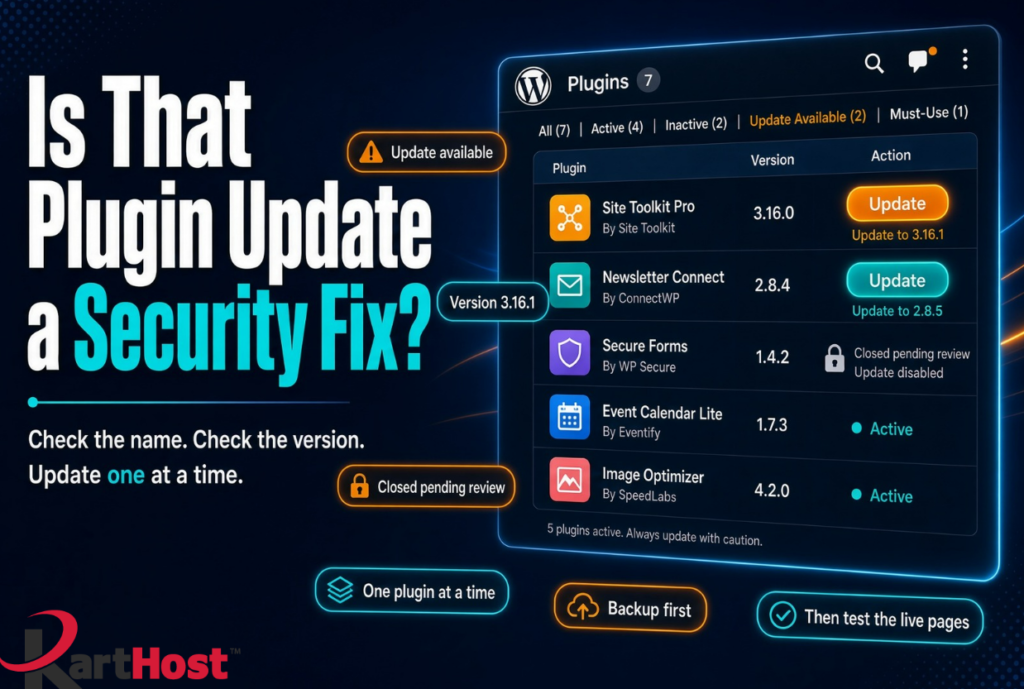
Have you logged into WordPress, seen an update notice, and wondered whether it is just a small improvement or something you should act on today? Late August 2026 brought patches and a few temporary closures for well-known plugins and themes that many small businesses use every day. Most owners only hear about those issues after a form stops working, a page looks off, or someone else mentions a problem. You do not need to follow security news all day. You only need a simple habit: look at the names and versions already sitting in your dashboard, understand what an update notice is telling you, and apply changes one plugin at a time.
This is a calm process you can finish in a few minutes.
First, see exactly what is installed
- Log into your WordPress dashboard.
- Go to Plugins, then Installed Plugins.
- For each plugin you use, note two things: the plugin name and the version number shown next to it. Some lists also show “Last Updated” or a link to View details.
- Do the same under Appearance, then Themes if you use a popular theme such as Avada or a page builder theme that ships with extra plugins.
Write the names and versions down, or take a screenshot. That list is your starting point. You now know what you actually rely on instead of guessing from memory.
For a wider look at core, plugins, and themes in one place, see our earlier guide How to Check If Your WordPress Site Is Updated and Protected Right Now.
What an update notice actually means
On Dashboard, then Updates, WordPress lists every plugin and theme that has a newer version available. That notice usually means one of three things:
- A security fix for a known issue.
- A bug fix or compatibility change with a new WordPress version.
- New features the developer added.
You cannot always tell which it is from the short line in the dashboard. Click View version details or the plugin name when that link is offered. The changelog often says “security update,” “patched vulnerability,” or simply lists version numbers. If the notice appeared after a week like late August, treat a security-related line as a reason to update soon, not as a reason to panic.
An update sitting there does not mean your site is already broken. It means a newer, safer copy exists and your current copy is older than that copy.
How to update one plugin at a time
Updating everything at once can make it hard to see which change caused a problem. A slower path is safer for a live small-business site.
- Make a current backup first. If your host or a backup plugin already runs daily copies, confirm the latest one finished. Our article 5 Essential WordPress Maintenance Tasks You Should Never Skip in 2026 covers backups in plain steps.
- Return to Plugins, Installed Plugins, or to Dashboard, Updates.
- Choose one plugin, preferably one that handles forms, logins, payments, or page building.
- Click Update now for that plugin only.
- After it finishes, open a few important pages: home, contact form, shop or checkout if you have one, and a recent blog post. Check the front of the site and, if you use it, the mobile view.
- If those pages look and work as they did before, move to the next plugin.
- If something looks wrong, you can usually roll that one plugin back with a plugin such as WP Rollback, or restore the backup you just confirmed.
Give each update a short look before starting the next one. Most updates finish without drama when they are done this way.
A related walk-through for trimming unused plugins first is The Easy Way to Keep Plugins From Becoming a Security Risk.
What to do if a plugin is closed or looks abandoned
Sometimes the Plugins screen or the WordPress.org page for a plugin shows that it has been closed pending review, or that it has not been updated in a long time. That happened with a group of well-known add-ons in August. Closed does not always mean your live site is already harmed. It means new downloads are paused while the project is checked.
Use this short decision path:
- If an official update is available, apply that update using the one-at-a-time steps above.
- If the plugin is closed and no update appears, deactivate it on a copy of the site or during a quiet hour and confirm the site still does what you need. Many features can be replaced by a maintained plugin that does the same job.
- If the plugin has not been updated in many months and the developer is silent, plan to replace it. Leaving an abandoned plugin active is the larger risk over time.
- Do not hunt for “nulled” or unofficial copies. Those often introduce new problems.
Keep the list of names and versions you made earlier. It makes it easy to see which items need a replacement instead of an update.
How managed WordPress hosting and a Care Plan handle this for you
On KartHost Managed WordPress hosting, core, plugins, and eligible themes are kept current as part of the service. The platform is built on Convesio containers, with backups and a support team that already watches the same update cycle you would otherwise check by hand. The VIP WordPress Care Plan adds another layer of regular review so you are not the only person looking at version numbers after a busy week.
You still own the content and the business decisions. The difference is that the routine of noticing a notice, checking a changelog, and applying one update at a time does not have to land only on you.
A short checklist you can use this week
- Open Plugins, Installed Plugins and write down names plus version numbers.
- Open Dashboard, Updates and read any available changelogs.
- Back up, then update one plugin, then test key pages.
- Repeat for the next plugin.
- Note any plugin that is closed, missing updates, or unused, and decide whether to replace it.
- Review the same list again after the next round of notices.
Plugin updates are ordinary site care, the same as changing a lock when the manufacturer sends a better one. Checking names and versions in the dashboard, reading the notice, and moving one plugin at a time is enough for most small sites. That habit is how you stay ahead of the next quiet week of patches without turning security into a second job.