
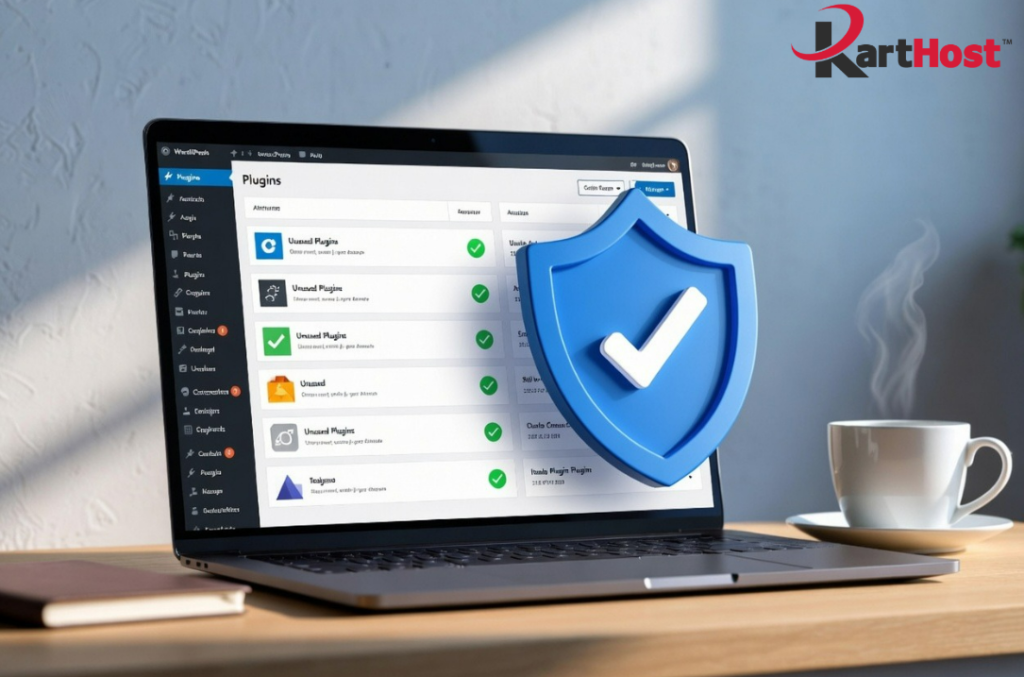
Have you ever logged into your WordPress site and noticed a long list of plugins you barely remember installing? Many of the problems we see with small business websites start right there. Neglected or unused plugins create openings for security issues far more often than problems with WordPress core itself. Outdated plugins can leave known holes unpatched, while extra ones slow the site down and raise the chance of conflicts.
If your plugin list has grown over time, a simple review can make a real difference. The process is beginner-friendly and takes less time than most people expect.
Why fewer plugins usually mean a safer and faster site
Every active plugin adds code that runs on your pages. More code means more places where something can go wrong, more database queries, and more files for attackers to target if a vulnerability appears. Unused plugins still sit on the server and can sometimes be exploited even when deactivated.
Local small businesses often run into this. A Tomball area restaurant owner might have three different form plugins left over from past experiments, or a Houston service company could carry old social sharing tools that no longer get updates. Cleaning those out typically improves load times and shrinks the attack surface without losing any features the business actually uses.
Step-by-step: Review your installed plugins
- Log into your WordPress admin dashboard.
- Go to Plugins > Installed Plugins.
- Look at the full list. Note the name, the last updated date if shown, and whether the plugin is currently active.
- Ask yourself three questions for each one:
- Do I still use this feature on the live site?
- Has it been updated in the last several months?
- Could another plugin or built-in WordPress tool do the same job?
- Make a short note of any that look unnecessary, outdated, or duplicated.
This quick scan usually reveals several candidates for removal.
Remove what is not needed
For plugins you no longer need, always make a backup before deleting anything. Our guide Restoring from Backup Without Losing Sleep, A Practical Guide walks through safe recovery if you need it. If you are unsure about a particular plugin, leave it for now and research it later rather than guessing. Then move forward with these next steps.
- Deactivate the plugin first.
- Check the front end of your site to confirm nothing important broke.
- Then click Delete. Removing the files is important. Simply deactivating leaves the code on the server.
Update the rest safely
Once the list is trimmed, update the plugins you are keeping.
- Return to the Plugins screen or the main Updates page.
- Update one plugin at a time when possible, especially any that handle security, payments, or forms.
- After each update, quickly view a few pages on the live site.
- Clear any site or browser cache so you see the current version.
If an update causes trouble, restore from your recent backup and open a support ticket. Pairing this habit with regular core checks, as outlined in our recent article on verifying WordPress updates, keeps the whole site in better shape.
Set a simple monthly habit
Pick one day each month, perhaps the first Monday, and spend ten to fifteen minutes on a quick plugin review. Check for updates, look for anything new that is no longer needed, and confirm the list still matches how the business actually runs. Write the date in a note or calendar so it becomes routine.
Over time this small habit prevents the slow buildup that turns plugins into a security risk.
Let KartHost handle the ongoing care
Keeping plugins under control is straightforward, yet it is easy to postpone when customer work and daily operations take priority. KartHost Managed WordPress Hosting includes regular updates to WordPress core, plugins, and many popular themes so the maintenance stays done. Daily backups and monthly reports give you visibility without having to dig through the dashboard yourself.
For extra help with content changes or more hands-on tasks, the VIP WordPress Care Plan provides a dedicated team that can manage updates with visual checks and handle a range of site needs. Both options sit on the Convesio container platform and keep your hosting, domains, and email under one account with the same support team.
If you would like us to review your current plugin list, clean up unused items, or move the site to a managed plan, open a support ticket in the KartHost Customer Center. We are glad to walk through it with you.
A leaner plugin list is one of the easiest ways to keep your site safer and faster. A short monthly check, or letting a managed service take care of it, protects the online presence you have worked hard to build.