
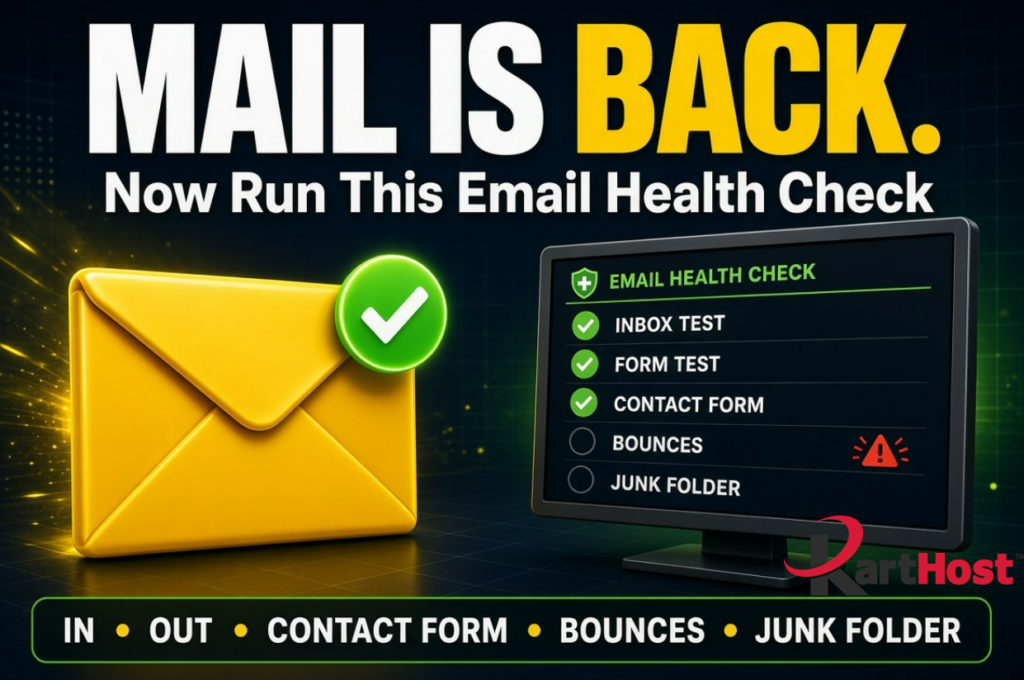
Mail is moving again. Outlook opens. A few messages that were stuck finally arrive. That does not mean every invoice, contact-form notice, and client reply is working.
After a Microsoft 365 or Outlook disruption, problems often hide. A form still “submits” on the website but never reaches the inbox. A bounce sits in a folder nobody opened. One mailbox works on the phone and fails on the desktop. A short health check catches that before a customer thinks you ignored them.
Give the service a little time first. Delayed mail can land in a bunch for several hours after Microsoft reports recovery. Then walk through the steps below. None of this requires you to edit DNS.
Why things still fail after the status page turns green
An outage can leave behind:
- Messages that arrived late and look like they are “missing”
- Outbound mail that left Outlook but never reached Gmail or a client
- WordPress or checkout notices that use a different sending path than Outlook
- A single device still using an old password or cached profile
- Filters or rules that moved mail while people were clicking around in a panic
The goal is to prove three paths work: incoming mail, outgoing mail, and the mail your website sends.
Step 1: Confirm you can receive mail
- From a personal Gmail, Yahoo, or other outside address, send a short test to your main business address. Use a clear subject such as “Health check inbound 1.”
- Send a second test to any other addresses customers use (info@, billing@, a person’s name).
- Check Outlook on the web and the desktop or phone app. The same message should show in both.
- Look in Junk, Clutter, Focused vs Other, and Deleted Items. After an outage, mail sometimes lands in the wrong pile.
- If nothing arrives in 15 to 30 minutes, try one more outside address before you assume the mailbox is broken.
If inbound mail fails only on one device, the mailbox is probably fine. Sign out of that profile, try the web app, and fix the device later.
Step 2: Confirm you can send mail
- From the business mailbox, send a test to that same outside address you control.
- Watch Sent Items. The message should leave, not sit in Outbox.
- Open the outside inbox and confirm it arrived, not just that Outlook said it sent.
- Repeat once to a different provider if you can (for example Gmail and a client who uses Microsoft). Receivers do not all treat delayed domains the same way.
- Save any bounce. The error text is more useful than “it didn’t go.”
If send works to one place and bounces at Gmail, Yahoo, or AOL, that is often authentication or reputation, not a leftover outage. See Emails bouncing back in Gmail/Yahoo/AOL? Here’s what’s going on. and Google and Microsoft’s Sender Guidelines in Plain English.
Step 3: Test the website contact form and other notices
This is the check most owners skip.
Your public form, “request a quote” button, online order notice, or booking email may use WordPress, a plugin, or a third-party form tool. That path is separate from clicking Send in Outlook.
- Submit the live contact form yourself. Use a real message and your own outside email as the visitor address.
- Confirm two things: you (the business) got the notification, and the visitor got any auto-reply you promised.
- Place a small test order or donation if you run a store, or trigger one booking, so checkout mail is included.
- Check spam on both sides.
- If the form says “sent” and nothing arrives, do not keep submitting it. Note the form plugin or service and the time.
Forms that send from a noreply address, or from the website server instead of your real mailbox, fail more often after provider issues. Plan to fix that after the health check, not during it.
Step 4: Look for bounced, stuck, or lost messages
- Sort the inbox by date and scan the hours of the outage. Late arrivals often show the original send time inside the message.
- Open Sent Items for the same window. Anything still in Outbox needs a decision: send again once, or call the person.
- Check Deleted Items and any archive or recover-deleted view your plan offers.
- Search for words you know were in expected mail: invoice numbers, a client name, “unsubscribe,” or “notification.”
- Ask one teammate to search their mailbox too. Rules and shared mailboxes hide copies.
Do not resend a whole marketing list to “make sure.” One test, then a personal follow-up to anyone who was waiting, is enough.
Step 5: Make sure nothing important changed on the account
After people scramble during an outage, look for leftovers:
- New inbox rules or auto-forwarding you did not create
- A password prompt that never finished
- A mobile device that stopped syncing
- A shared calendar that no longer updates
If you find forwarding you do not recognize, treat it as a security issue. Start with What to Do If an Employee Clicks a Phishing Link and the Email Security Checklist for Small Businesses.
Leave MX, SPF, DKIM, and DMARC alone unless a test bounce clearly points at them. Guessing at those records is how a recovered mailbox breaks again. Background reading lives in 5 Essential Tips for Mastering SPF, DKIM, and DMARC in 2026 and Your Domain Name, DNS and Email – The 2026 Survival Guide.
Test these 5 things
- Outside address sends mail in to your main business inbox, and you can see it on the web and on a device.
- Your business mailbox sends mail out to an outside address you control, and it actually arrives.
- The live website contact form delivers a notice to you and any visitor auto-reply.
- Sent, Junk, and Deleted folders have been scanned for the outage window.
- No new forwarding rules or mystery sign-ins appeared.
What the results usually mean
If all five checks pass, you can get back to work. Keep an eye on the next day of real customer mail. Quiet delays sometimes show up on the second morning, not in the first test.
If only one device fails, fix that Outlook profile or phone account. The mailbox itself is likely fine.
If Outlook works and the website form does not, the problem is the form’s sending method, not Microsoft 365 as a whole. Note the plugin or form tool before changing DNS.
If tests bounce with language about DNS, SPF, DKIM, DMARC, or “no mail server,” compare that text to the guides linked above before rewriting records. The KartHost knowledgebase also has DNS and mailbox setup articles you can match to your service (KloudEmail, Hosted Exchange, or Microsoft 365).For the first-hour checklist while mail is still down, use What to Do When Microsoft 365 or Outlook Email Suddenly Stops Working. When the inbox feels stable again, a slower pass through the Email Security Checklist for Small Businesses helps catch forwarding rules and authentication drift.
A recovered status page is a start. Five small tests tell you whether customers can still reach you.