
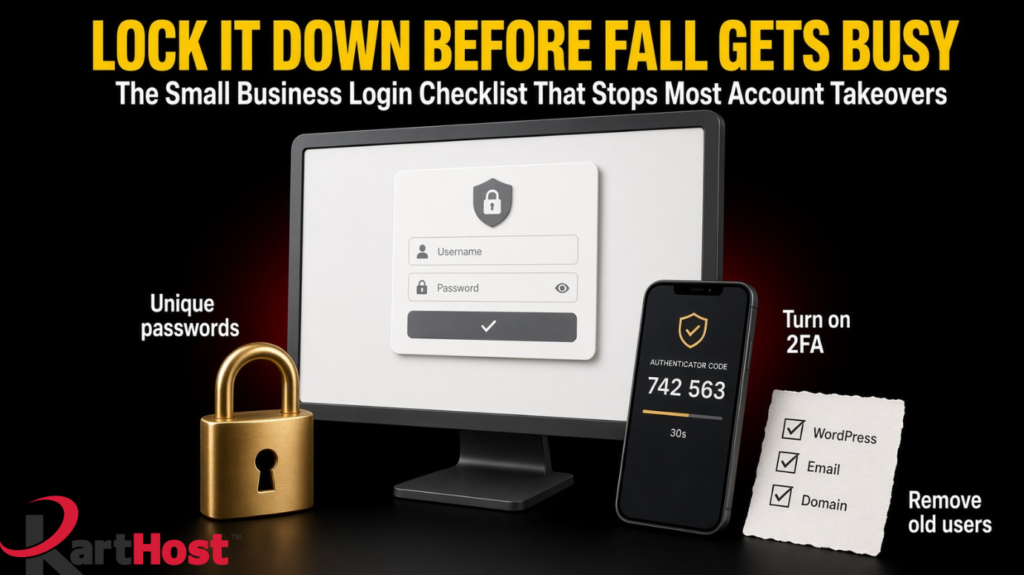
Most small business “hacks” we still see are not clever break-ins. They start with a reused password, a leftover admin account, or a domain login that still uses last year’s recovery email. Once someone has those keys, they can change the website, forward invoices, or move the domain. Fancy attacks get the headlines. Stolen logins do the damage.
Fall is a good time to tighten this. Holiday hours start soon. Extra seasonal help often needs temporary access. Owners are busier, which means a phishing message that looks like a password reset is easier to miss. You do not need a security team for this. You need one sitting, a notepad, and the three logins that actually run the business: WordPress admin, email admin, and the domain registrar account.
If 2FA still feels fuzzy, start with Understanding Two-Factor Authentication: A Beginner’s Guide to Better Online Security. The rest of this post assumes you can log into each account and make a short list of who else can.
Why these three accounts matter more than the rest
Think of them as master keys.
- WordPress admin controls the website, plugins, forms, and who can publish.
- Email admin controls mailboxes, forwarding, aliases, and who can reset other people’s passwords.
- The domain registrar account controls the name itself. Whoever sits there can change nameservers, unlock a transfer, or point the site and mail somewhere else.
A weak password on a social page is annoying. A weak password on any of those three can take the business offline. That is why Protecting Your Domain from Hijacking and Unauthorized Changes in 2026 and The 5-Minute Domain Security Check Every Small Business Should Do keep coming back to the same idea: lock the account that owns the name before you worry about everything else.
What to have in front of you
Set aside 45 to 90 minutes. Use a device you trust, not a shared front-desk computer.
Write down:
- The WordPress login URL (usually yourdomain.com/wp-admin).
- How you reach email admin. That may be the KloudEmail Control Panel, Microsoft 365 admin center at admin.microsoft.com, or Hosted Exchange admin.
- How you reach the domain. For many KartHost customers that is the Customer Center. If the domain still lives at another registrar, use that login instead.
- A current owner email address you actually check.
- A password manager if you have one. If you do not, use a notebook you can lock up. Do not store these passwords in a shared spreadsheet.
Do not change DNS, MX, or nameservers during this review. Those records belong in a planned change, not a login cleanup. The connections are explained in Your Domain Name, DNS and Email – The 2026 Survival Guide.
Part 1: WordPress admin
Log into WordPress.
1. Look at every user
Go to Users, then All Users.
For each person, note the username, email address, and Role.
Keep Administrator only for people who truly need to install plugins, change themes, or add users. An office manager who only edits pages usually needs Editor. Someone who only writes blog posts usually needs Author. A leftover “admin” account from a designer who finished last year should not still be an Administrator.
If you see a user you do not recognize, especially one with Administrator next to the name, treat that as urgent. New mystery users also show up when a form or plugin is being abused. That pattern is covered in Why Contact Forms, Donation Tools, and Page Builders Need Extra Attention in 2026.
2. Remove or demote old access
Do this in order:
- Change the password on any Administrator account you still need.
- Demote people who no longer need full control.
- Delete accounts for former staff, old vendors, and test users you created during a redesign.
If you are not sure whether a user is still needed, demote first. Deleting can wait until you confirm they do not own content you still need.
3. Stop using a shared “admin” login
One shared username and password for the whole office is still common. It is also the fastest way for a takeover to hide. You cannot tell who published a page or who installed a plugin.
Give each person their own login and the lowest role that still lets them work. When holiday help starts, create a dated account such as “seasonal-editor-2026” and put a reminder on your calendar to remove it in January.
4. Turn on two-factor authentication for Administrators
Use your security plugin or the 2FA tool already on the site. An authenticator app is stronger than a text-message code. Save the backup codes offline.
While you are in the dashboard, glance at Dashboard, then Updates. An outdated site is easier to break into even with a good password. A current snapshot lives in How to Check If Your WordPress Site Is Updated and Protected Right Now. Plugin clutter is a separate sitting, covered in The Easy Way to Keep Plugins From Becoming a Security Risk.
Part 2: Email admin
Open the admin area for your email, not just Outlook or webmail.
1. List every mailbox and every admin
Write down who has a mailbox and who can create or delete mailboxes. Those are not always the same people.
Watch for:
- A former employee whose mailbox still exists
- A shared inbox that everyone knows the password to
- An old contractor still listed as an admin
- A personal Gmail or Yahoo address used as the “reset” contact for the whole company
2. Turn on multi-factor authentication
Require it for admins first, then for everyone who can see client mail or send invoices.
On KloudEmail, the domain admin turns MFA on in the Control Panel under Webmail Settings. Each user then finishes setup in Webmail under Settings, then Security. On Microsoft 365, enforce MFA for the organization and give extra care to global admins and finance mailboxes.
Save backup codes in the same safe place as your other recovery information.
3. Hunt for silent forwarding and surprise rules
Open each important mailbox, or use the admin tools if you have them, and look for:
- Forwarding to an outside address you do not recognize
- Inbox rules that send copies somewhere else
- Delegates or “send as” rights that no longer make sense
Unexpected forwarding after a click is a classic takeover leftover. If you find one, follow What to Do If an Employee Clicks a Phishing Link: A Practical Small Business Response Guide before you assume it is only a messy setting. The wider quarterly pass is in Email Security Checklist for Small Businesses.
4. Give seasonal staff the least access that still works
Holiday help rarely needs the email admin portal. They usually need one mailbox or one shared inbox. Create that access on purpose, write the end date down, and remove it when the season ends.
Part 3: Domain registrar account
This is the account people forget until a renewal notice looks wrong.
1. Confirm you can still log in
Use the KartHost Customer Center if that is where the domain lives. If it is still at another registrar, use that site. If the login email bounces or the password reset goes to someone who left in 2023, fix that first.
2. Turn on multi-factor authentication
Do this on the registrar account itself, not only on email. An authenticator app is the better default. Save the backup codes.
The short version of this step is also in The 5-Minute Domain Security Check Every Small Business Should Do.
3. Review who can reset or transfer the domain
Check:
- The login email and phone number
- Admin, billing, and technical contacts
- Whether more than one person has full control
- Whether the domain lock, also called transfer lock or ClientTransferProhibited, is on
Only the owner, or one trusted backup person, should be able to approve a transfer or change nameservers. A web designer does not need that power after the site is built. Don’t Let Your Website Get Taken Hostage is still the plain-language warning on why ownership and control have to stay with the business.
4. Keep recovery in a mailbox you control
Registrar password resets go to the email on the account. If that address is a personal inbox you barely check, or an old employee mailbox, the domain is only as safe as that inbox. Use a current business address that the owner watches.
Shared habits that close most of the remaining holes
These apply to all three logins.
Use a unique password for WordPress, a different unique password for email admin, and a third unique password for the registrar. Reuse is how one leaked shopping site becomes a takeover of the whole web presence.
Prefer an authenticator app over text messages when the service offers both.
Do not approve a login prompt that you did not start. AI-written phishing mail no longer gives itself away with bad spelling. That change is explained in AI-Generated Phishing Emails in 2026: Why “Perfect” Grammar No Longer Means Safe.
After any staff change, run the user lists again. Do not wait for the next annual cleanup.
If you carry cyber insurance, these same controls often show up on the application. Cyber Insurance in 2026 – What It Means for Your Email and Domain Setup maps the usual questions back to email and domain settings.
A one-sitting checklist
Print this or copy it into a note.
WordPress
- I logged into wp-admin.
- I reviewed every user and role.
- Former staff and leftover vendor admins are gone or demoted.
- Each person has their own login.
- Administrators use 2FA, and backup codes are stored safely.
Email admin
- I logged into the real admin area, not only Outlook.
- I know who has a mailbox and who is an admin.
- MFA is on for admins and for anyone who handles money or client mail.
- I checked for forwarding and rules I did not create.
- Seasonal access has an end date.
Domain registrar
- I logged into the account that actually owns the name.
- MFA is on, and backup codes are stored safely.
- Contact email and phone are current and watched.
- Transfer lock is on.
- Only the right people can approve a reset or transfer.
Wrap-up
- Each of the three accounts has its own password.
- I did not change DNS or mail routing while doing this review.
What this checklist is not
This is not a full malware scan, a plugin audit, or a DNS rebuild. It will not replace updates or backups. It will stop the most common way a small business loses the keys to its own site and email.
If a step is unclear on your particular setup, the related posts above cover the next layer in the same plain language. KartHost can also walk through the Customer Center, KloudEmail admin, or domain lock screens with you when you want a second pair of eyes. The goal is that you finish this sitting knowing who can get in, how they prove it is them, and who no longer belongs.
Holiday traffic is easier when the locks are already on.