
Have you seen an AI plugin or free chat tool that promises to write posts, design pages, or fix problems on your WordPress site with almost no effort? Many small business owners try them because the idea of saving time is appealing. Yet we regularly hear from customers whose sites suddenly slowed down, showed strange errors, or developed security warnings after installing one of these tools.
The good news is that useful AI helpers exist. The key is choosing carefully, testing safely, and knowing when human support is the better choice. This guide walks through practical steps drawn from the real issues we see at the support desk so you can use AI without creating new problems.
Why some AI tools cause trouble
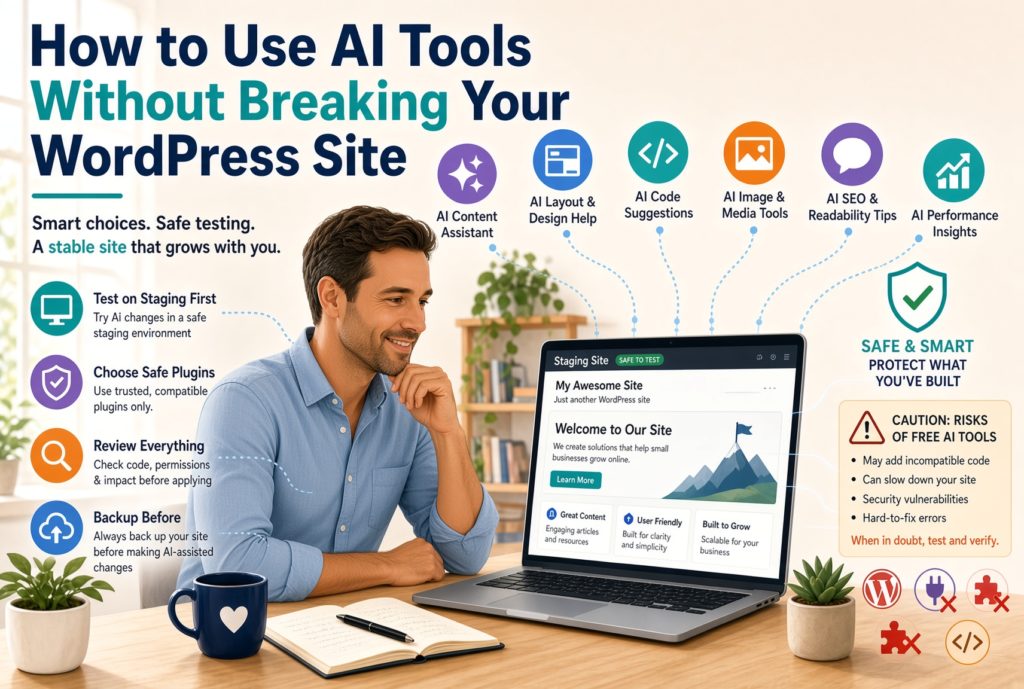
Free or low-cost AI plugins often add a lot of extra code. Some load large scripts on every page, which slows load times. Others request broad permissions or connect to external services in ways that create security openings. A few conflict with existing plugins or themes, especially after a WordPress update. Chat-style tools that sit outside WordPress can also lead to pasted code or content that breaks layouts if it is not reviewed carefully.
These problems are avoidable when you approach AI the same way you approach any new plugin: slowly, with a backup plan, and with clear limits.
A beginner guide to choosing safe, useful AI helpers
Start by deciding what you actually need. Common helpful uses include generating draft text you will edit yourself, creating alt text for images, or getting simple suggestions inside the editor. Avoid tools that claim to “fully manage” or “automatically optimize” your entire site without your review.
When evaluating an AI plugin or tool, check these points:
- It comes from a known developer with recent updates and clear documentation.
- Reviews mention real-world use on WordPress sites similar to yours.
- It works with the official WordPress AI foundations (the Connectors screen) rather than forcing its own separate connection method.
- Permissions are limited to what the tool truly needs.
- There is an easy way to turn features off or uninstall cleanly.
If a free tool asks for extensive access or has not been updated in months, skip it. Stick with options that integrate cleanly with WordPress 7’s built-in AI layer whenever possible.
Test everything on a staging site first
Never install a new AI plugin or make major AI-driven changes on your live site. A staging site is a safe copy where you can experiment without affecting customers or search rankings.
Most managed hosting platforms make staging simple. Create or request a staging copy, install the AI tool there, and try the features you plan to use. Check these results:
- Does the front end of the site still load quickly?
- Do key pages (home, contact, shop if you have one) look and work correctly?
- Are there any new error messages in the dashboard?
- Does the tool produce content or changes you can easily review and edit?
If anything feels off, deactivate or remove the tool on staging and restore from backup if needed. Our article Restoring from Backup Without Losing Sleep, A Practical Guide covers safe recovery steps. Only move a tool to the live site after it has proven reliable on staging.
Practical do’s and don’ts from real customer experiences
Do
- Keep a fresh backup before installing or enabling any AI tool.
- Review every piece of AI-generated content or code before publishing.
- Limit AI tools to one or two specific tasks rather than giving them broad control.
- Monitor site speed and error logs for a few days after activation.
- Uninstall cleanly if a tool is no longer needed. Deactivating is not always enough.
Don’t
- Install multiple AI plugins at the same time. Conflicts are common.
- Paste large blocks of AI-generated code directly into your theme or custom CSS without testing.
- Grant an AI tool more permissions than it requires for the job you want done.
- Rely on AI for security scanning, malware removal, or complex troubleshooting. Those tasks need experienced human eyes.
- Ignore performance changes. A slower site hurts both visitors and search rankings.
One frequent pattern we see is an owner installing a free AI writing plugin, then discovering days later that forms stopped working or the mobile layout broke. Testing on staging would have caught the issue early. Another common situation involves chat tools that insert scripts which conflict with caching or security plugins. Clean removal and a restore fixed those cases, but prevention is simpler.
When to stick with human support instead
AI tools are assistants, not replacements for judgment or technical care. Choose human support when:
- The site has already shown errors or slowdowns.
- You need to troubleshoot a specific problem rather than generate new content.
- Security, backups, or updates are involved.
- You want changes that match your exact brand voice and local business details.
- You simply prefer a reliable person who knows your account.
KartHost Managed WordPress Hosting keeps core, plugins, and many themes updated so AI tools (when you choose to use them) run on a stable foundation. Daily backups and malware scanning add another layer of protection. The VIP WordPress Care Plan gives you a dedicated team for content changes, visual checks, and hands-on help when AI is not the right fit.
A simple way to move forward
AI can save time when it is chosen carefully and tested safely. Treat every new tool the same way you treat any plugin: research, stage, test, review, and monitor. When in doubt, a support ticket is often faster and safer than experimenting alone.
If you would like us to review a specific AI plugin you are considering, set up a staging environment, or discuss whether managed hosting would make AI experiments less risky for your site, open a support ticket in the KartHost Customer Center. We are glad to walk through the options with you.
Your WordPress site works best when helpful tools stay under your control. A few careful habits keep AI useful without putting the rest of your online presence at risk.