
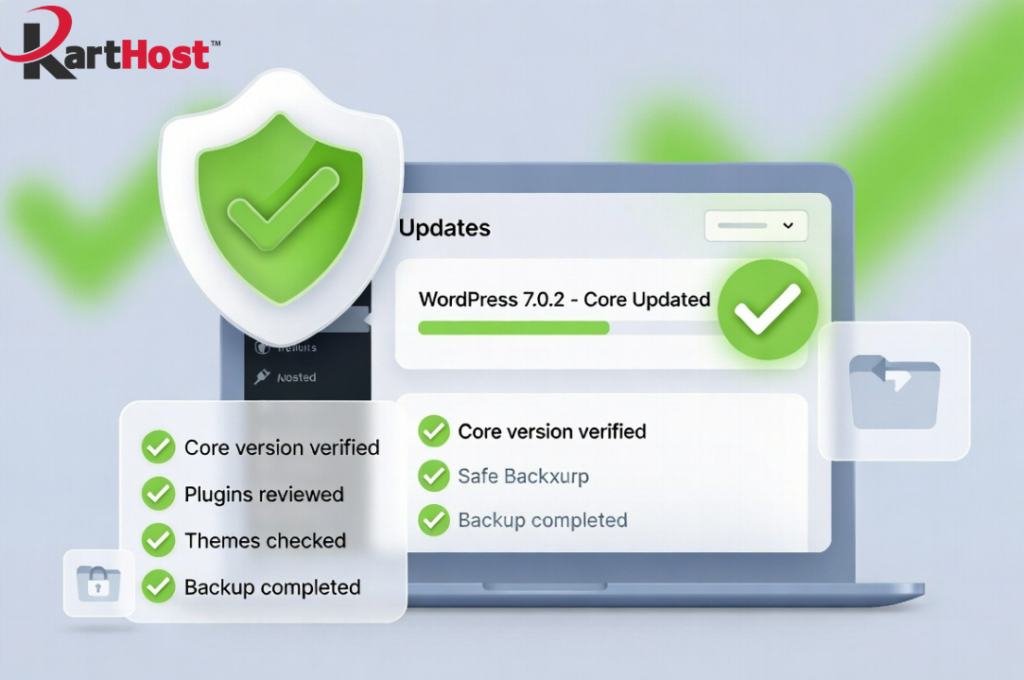
Have you looked at your WordPress dashboard lately and wondered if your site is truly safe after the mid-July security patches? A pair of serious vulnerabilities in WordPress core (patched on July 17, 2026) are still being actively exploited on sites that have not updated. These issues, sometimes called the wp2shell chain, can let attackers take control of a default WordPress install without needing any plugins or login credentials. Many small business owners simply do not know how to confirm their version status or apply the fixes safely.
If that sounds familiar, you are not alone. The good news is that checking takes only a few minutes, and the steps are straightforward even if you are not technical.
What the July patches fixed and why it still matters
WordPress released versions 7.0.2, 6.9.5, and 6.8.6 to close two related problems. One involved a SQL injection risk and the other a REST API issue. When chained together they allowed remote code execution. WordPress also turned on forced automatic updates for many affected sites because of the severity. Even so, some sites remain on older versions if auto-updates were disabled, if a plugin conflict blocked the process, or if the owner simply has not checked.
Outdated plugins and themes create additional openings. Keeping everything current is the simplest way to stay protected.
Step-by-step: Check your WordPress core version
- Log into your WordPress admin dashboard (usually yourdomain.com/wp-admin).
- Look at the bottom of the left-hand menu or go to Dashboard > Updates. The current version of WordPress is listed clearly.
- Compare it to the patched releases: 7.0.2 (or newer), 6.9.5 (or newer on the 6.9 branch), or 6.8.6 (or newer on the 6.8 branch). Anything older on those branches needs attention.
- If an update is available, you will see a notice. Do not click Update yet. First make a backup.
Check plugins and themes the same way
Still on the Updates screen, scroll down. WordPress lists every plugin and theme that has a newer version available. Note which ones show updates. Pay special attention to any security-related plugins or those that handle forms, payments, or user logins.
You can also open Plugins > Installed Plugins and Themes > Installed Themes. Each item usually shows its version number next to the name. Compare those numbers against the latest versions listed on the plugin or theme page at wordpress.org if you want extra confirmation.
What “forced updates” mean
Because the July vulnerabilities were so serious, WordPress pushed automatic background updates to many sites running affected versions. If auto-updates are enabled on your site (the default for most newer installs), the core may already have updated itself. That is helpful, but it is still wise to verify. Forced updates do not always cover every plugin or theme, and they can occasionally be blocked by server settings or conflicting code.
The safest way to update without breaking your site
- Create a full backup of your site files and database first. Most hosting control panels offer one-click backups, or you can use a reliable backup plugin. For practical guidance on restoring if something goes wrong, see our article Restoring from Backup Without Losing Sleep, A Practical Guide.
- If possible, test the update on a staging or development copy of the site.
- Update WordPress core first, then plugins, then themes, one at a time when practical.
- After each update, quickly check the front end of your site and a few key pages (home, contact, shop if you have one) to confirm everything still works.
- Clear any caching (site cache, Cloudflare, browser) so you are viewing the fresh version.
If something looks wrong after an update, restore from the backup you made and open a support ticket for help. Many owners discover too late that their backup approach has gaps. Our post Why Your Current Backup Strategy Might Fail You in a Real Emergency explains common pitfalls and how to avoid them. Pairing solid backups with a basic continuity plan, covered in Building a Simple Business Continuity Plan That Actually Works, gives extra peace of mind.
Quick checklist you can use right now
- Log into wp-admin and note the WordPress core version.
- Confirm it is 7.0.2+, 6.9.5+, or 6.8.6+ (or a later release).
- Review the Updates screen for pending plugin and theme updates.
- Make a fresh backup before applying any updates.
- Apply core, then plugins, then themes.
- Test the live site afterward.
- Note the date you completed the check so you can repeat it regularly.
Let KartHost take this worry off your plate
Checking and updating is manageable, yet it is also easy to put off when you are busy running a business. KartHost Managed WordPress Hosting handles WordPress core, plugin, and many popular theme updates for you. Daily backups, malware scanning, and clear monthly reports come with the plan so you stay informed without having to dig through the dashboard yourself.
For sites that need ongoing content changes or extra hands-on help, the VIP WordPress Care Plan gives you a dedicated professional team available 24/7. You simply email task requests to an exclusive address and the team handles content updates, plugin installs, form configuration, theme adjustments, and more (each task up to 30 minutes, with longer options available). They also manage WordPress Core and Plugin updates with Visual Validator plus daily security scans and malware cleanup. This keeps everything under one roof with the same support team that already knows your account.
If you would like us to review your current site status, move you to managed hosting, or simply walk through the checks together, open a support ticket in the KartHost Customer Center. We are happy to help you confirm everything is current and protected.
Your website is the front door to your business. A few minutes of verification today, or letting a managed plan handle it going forward, keeps that door secure.
Source: WordPress 7.0.2 security release and related advisories, https://wordpress.org/news/2026/07/wordpress-7-0-2-release/